How to use custom wallpapers
There are two ways to get custom wallpapers onto your XBOX: download directly onto your console by using Edge or download to a thumbdrive using a PC, and use that to transfer the wallpaper to your console.
Both methods are covered below. We'll go over the easiest, using Edge, first.

If your wallpaper automatically changed to an ad or other event-themed image, here's how to change it back and disable this feature.
Using Edge to get custom wallpapers
-
Step 1
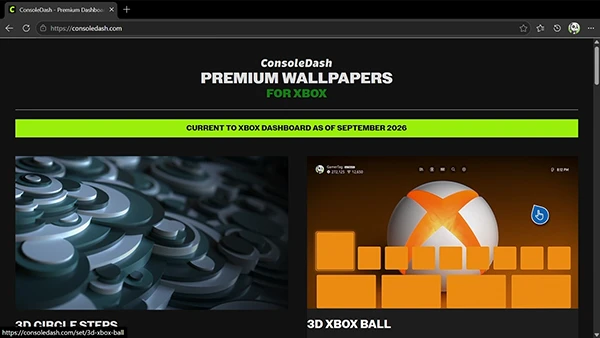
If you don't have Edge installed on your console, download it. Once downloaded, open it and navigate to consoledash.com. Find a wallpaper you like, and click through to see color options.
-
Step 2
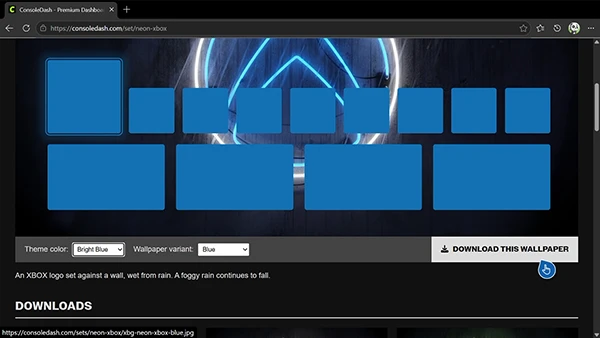
Pick a wallpaper from the preview selector at the top of the page or scroll down to select from thumbnails. Once you've got a color picked out, click to download.
-
Step 3
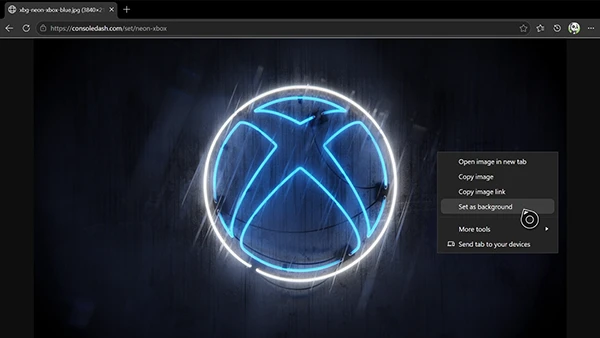
Once the wallpaper is downloaded, you'll see the high-resolution version in full-screen. Hover the cursor over it and press the Menu Button to open Edge's context menu, then select Set as background. After a moment, you will see a system notification appear confirming that the new background is set.
-
Step 4
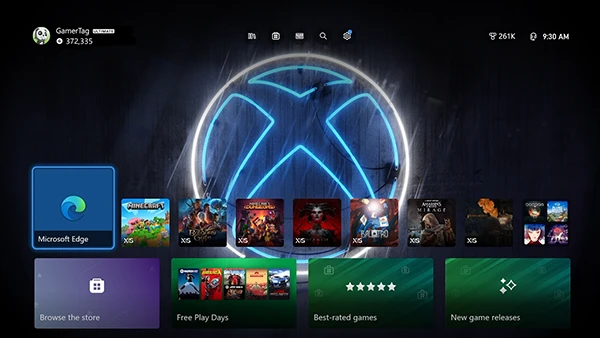
Exit to the home screen and enjoy your new wallpaper!
Using a thumbdrive to get custom wallpapers
-
Step 1
Using your PC, find your favorite wallpaper on consoledash.com, then download it and save the image to a thumbdrive.
-
Step 2
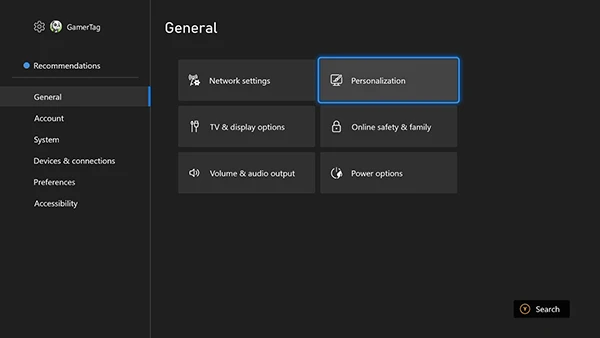
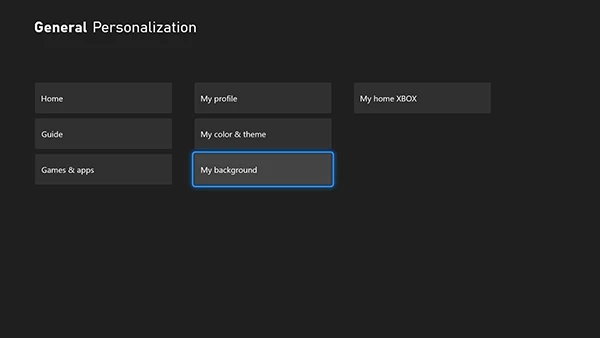
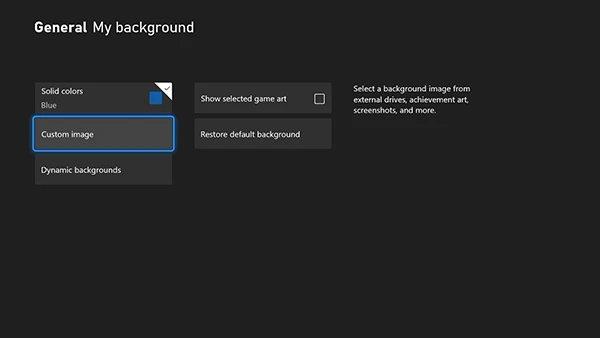
Plug the thumbdrive into your XBOX, then go to Settings > General > Personalization > My background, and select Custom image.
-
Step 3
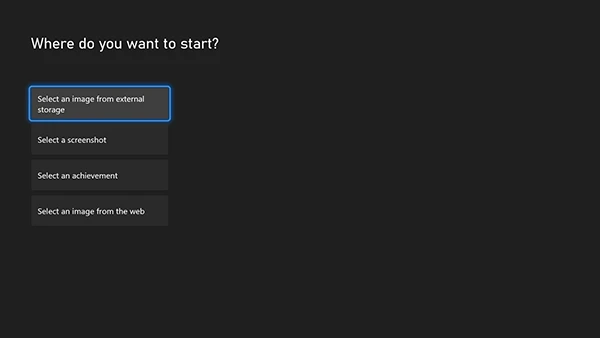
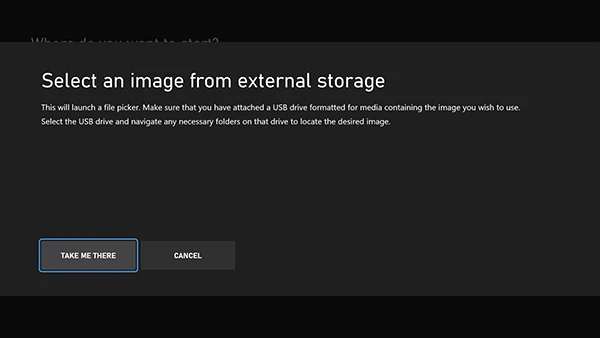
When prompted 'Where do you want to start?', choose Select an image from external storage. Choose Take me there at the next prompt.
-
Step 4
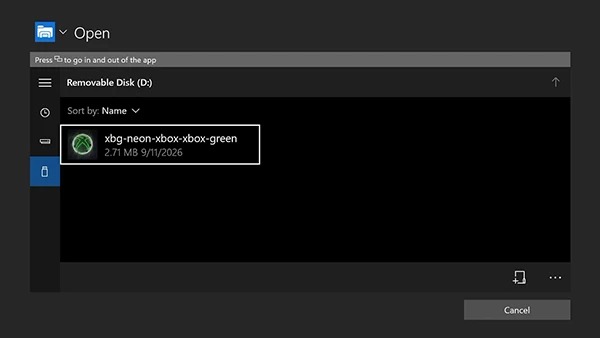
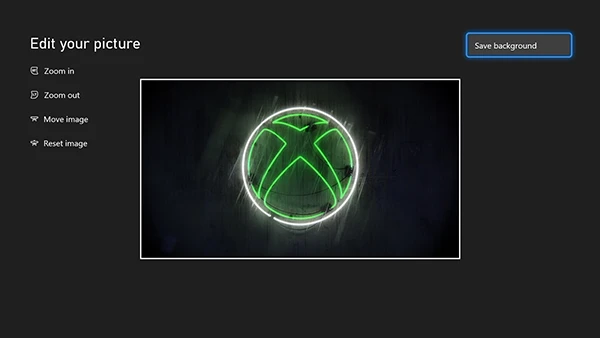
When the file picker appears, select the thumbdrive tab on the left side. Any wallpapers that you copied to the thumbdrive will appear in a list on the right, in the main window. Choose the one you want to use, and then in the 'Edit your picture' prompt, select Save background. A small window will appear to confirm the new wallpaper.
-
Step 5
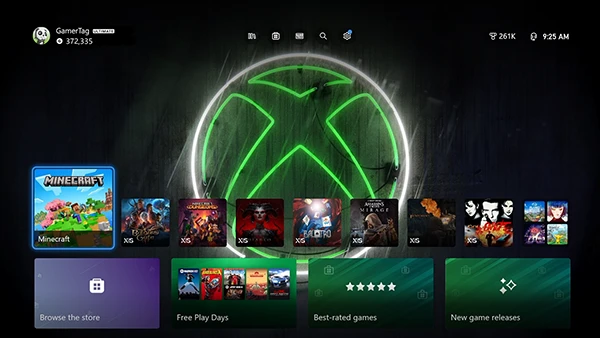
Exit to the home screen and enjoy your new wallpaper!
Surprised to see an ad take over your wallpaper?
XBOX calls this feature "event-themed backgrounds". Thankfully, it's easy to disable using the following guide:
Disable event-themed wallpapers
-
Step 1
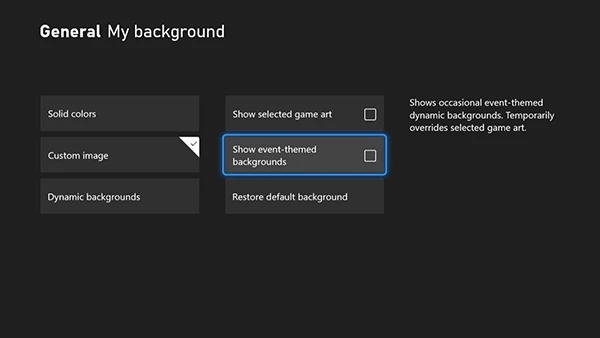
Go to Settings > General > Personalization > My background, and uncheck the box for Show event-themed backgrounds.